

TestLens CLI
The TestLens CLI gives you access to your test results from the command line. Instead of clicking through GitHub Actions logs, you run one command and see which tests failed, where they ran, and why.
Installation
Section titled “Installation”The CLI ships as a native binary, so it needs no Java installation. Download the archive for your operating system and architecture from the latest release:
| OS | Archive |
|---|---|
| Linux | testlens-linux-<arch>-<version>.zip |
| macOS | testlens-macos-<arch>-<version>.zip |
| Windows | testlens-windows-<arch>-<version>.zip |
Unzip the archive and put the testlens binary somewhere on your PATH.
unzip testlens-linux-<arch>-<version>.zipsudo mv testlens-*/testlens /usr/local/bin/In PowerShell, move the binary to a new directory and add it to your user PATH:
Expand-Archive testlens-windows-<arch>-<version>.zipNew-Item -ItemType Directory -Force "$env:LOCALAPPDATA\Programs\testlens"Move-Item testlens-windows-<arch>-<version>\testlens-<version>\testlens.exe "$env:LOCALAPPDATA\Programs\testlens"[Environment]::SetEnvironmentVariable("Path", [Environment]::GetEnvironmentVariable("Path", "User") + ";$env:LOCALAPPDATA\Programs\testlens", "User")Open a new terminal afterwards for the PATH change to take effect.
Verify the installation:
testlens --versionFor verifying the release archive, see Verifying release integrity.
macOS: binary blocked by Gatekeeper
Because the binary is not notarized, macOS may block it after downloading with a browser (“cannot be opened because the developer cannot be verified”). Remove the quarantine flag to allow it:
xattr -d com.apple.quarantine testlensRunning testlens without arguments prints the available commands:
Usage: testlens [-hV] [COMMAND] -h, --help Show this help message and exit. -V, --version Print version information and exit.Commands: pr Show the tests of a pull requestCurrently there is a single command, pr, which shows the test results of a pull request.
By default, TestLens detects the repository from the current working directory, so running testlens pr <number> inside a clone is usually all you need.
Usage: testlens pr [-hV] [--mode=<mode>] [--repo=<repo>] [--sha=<sha>] [--token=<token>] <number>Show the tests of a pull request <number> Pull request number -h, --help Show this help message and exit. --mode=<mode> Output mode: AUTO, TUI, CLI (default: auto, uses the TUI in an interactive terminal) --repo=<repo> Repository as owner/repo (defaults to the GitHub remote 'origin' of the current directory) --sha=<sha> Commit sha to show the tests of (defaults to the head of the pull request) --token=<token> GitHub access token (defaults to $GITHUB_TOKEN or $GH_TOKEN)The --repo, --sha, and --token options all have sensible defaults: the repository is read from the origin remote, the commit is the head of the pull request, and the token is taken from $GITHUB_TOKEN or $GH_TOKEN.
Use them explicitly when running TestLens outside a repository clone, for a specific commit, or in an environment without those environment variables.
If you use the GitHub CLI, you can create the token from your existing login:
export GITHUB_TOKEN=$(gh auth token)Output modes
Section titled “Output modes”testlens offers two output modes: TUI and CLI. The mode is selected automatically based on whether the command runs in an interactive terminal (a TTY) or not.
The TUI mode is meant for humans and offers a rich, colorful interface with keyboard navigation.
The CLI mode writes plain text to stdout, which makes it easy to consume for scripts or AI agents.
Use --mode to override the automatic selection.
TUI Mode
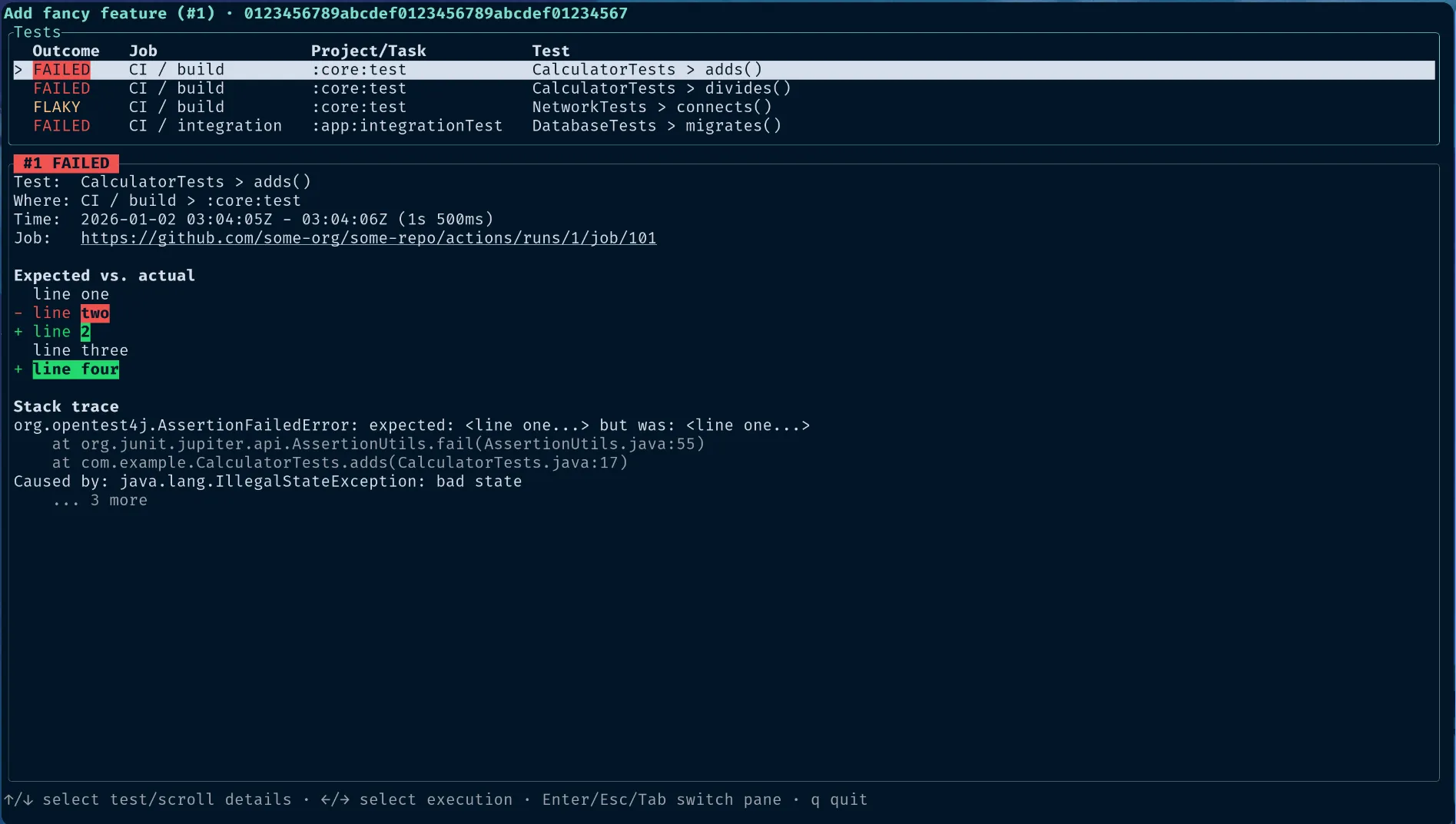
Section titled “TUI Mode”The TUI has two parts: a table of failing tests and a detail area for inspecting individual test executions.
The top row shows the pull request title with its number in parentheses, followed by the HEAD sha the results belong to.
The tests table lists all tests that had failures and aggregates multiple results for the same test. For example, if a run failed but a later run for the same commit succeeded, the test is marked as flaky. Each row has the following columns:
- Outcome: the aggregated result described above
- Job: the GitHub job that executed this test
- Project/Task: the Gradle task path or Maven test goal that executed this test inside the job
- Test: the display name of the test
The main area is a tabbed view with one tab per test execution for that commit. If there are multiple executions, the most recent one is selected automatically. Each tab contains a header with the test details:
- Test: the display name of the test
- Where: the job name and the Gradle task or Maven goal that executed this test
- Time: start and end time of the test execution, with the duration in parentheses
- Job: a link to the job log on GitHub
Below the header, an expected-vs-actual area shows what the test expected next to the actual value, with green and red highlighting the differences. Beneath that, the stack trace area shows the full stack trace of the failure that caused this test to fail.
CLI Mode
Section titled “CLI Mode”CLI mode prints the same information as plain text. It is useful for scripts and AI agents, since everything is readable verbatim from stdout:
Add fancy feature (#1)Head:  0123456789abcdef0123456789abcdef01234567Tests: 7 executedJobs:  2/3 completed
Commit: 0123456789abcdef0123456789abcdef01234567
CI / build > :core:test  CalculatorTests > adds()    1. FAILED (2026-01-02 03:04:05Z - 03:04:06Z (1s 500ms), see https://github.com/some-org/some-repo/actions/runs/1/job/101)         line one       - line two       + line 2         line three       + line four       org.opentest4j.AssertionFailedError: expected: <line one...> but was: <line one...>           at org.junit.jupiter.api.AssertionUtils.fail(AssertionUtils.java:55)           at com.example.CalculatorTests.adds(CalculatorTests.java:17)       Caused by: java.lang.IllegalStateException: bad state           ... 3 more  CalculatorTests > divides()    1. FAILED (2026-01-02 03:04:05Z - 03:04:05Z (300ms), see https://github.com/some-org/some-repo/actions/runs/1/job/101)       java.lang.ArithmeticException: / by zero           at com.example.Calculator.divide(Calculator.java:9)    2. FAILED (2026-01-02 03:04:10Z - 03:04:10Z (280ms), see https://github.com/some-org/some-repo/actions/runs/1/job/101)       java.lang.ArithmeticException: / by zero  NetworkTests > connects()    1. FAILED (2026-01-02 03:04:05Z - 03:04:07Z (2s), see https://github.com/some-org/some-repo/actions/runs/1/job/101)       java.net.SocketTimeoutException: Read timed out    2. FAILED (2026-01-02 03:04:08Z - 03:04:10Z (2s 100ms), see https://github.com/some-org/some-repo/actions/runs/1/job/101)       java.net.SocketTimeoutException: Read timed out    3. SUCCESSFUL (2026-01-02 03:04:11Z - 03:04:13Z (2s 150ms), see https://github.com/some-org/some-repo/actions/runs/1/job/101)       java.net.SocketTimeoutException: Read timed out
CI / integration > :app:integrationTest  DatabaseTests > migrates()    1. FAILED (2026-01-02 03:04:05Z - 03:04:05Z (900ms), see https://github.com/some-org/some-repo/actions/runs/1/job/101)       java.lang.AssertionError: table already exists
The summary at the top gives the pull request title, head commit, number of executed tests, and job completion status. Below, tests are grouped by job and task or project. Each execution line shows the attempt number, outcome, timing, and a link to the job log, followed by a diff of expected versus actual output and the failure’s stack trace. Repeated executions of the same test are listed as numbered attempts, so a test that failed twice and then passed reads directly as flaky.
Fixing failures with an AI agent
Section titled “Fixing failures with an AI agent”Since CLI mode prints everything an agent needs to stdout, you can hand a failing pull request straight to your coding agent:
Run `testlens pr 42` and fix the failing tests it reports.Commit and push the fix to the PR branch.Appendix
Section titled “Appendix”Verifying release integrity
Section titled “Verifying release integrity”Every release archive is published with two kinds of cryptographic evidence: a detached PGP signature (the archive file name with a .asc suffix) and a GitHub artifact attestation.
Together they let you confirm that an archive you downloaded is exactly the one produced by the official release workflow.
Verifying the PGP signature
Section titled “Verifying the PGP signature”The public key used to sign the releases is available at testlens.app/KEYS.txt. Import it, then verify the signature of the archive you downloaded:
curl -fsSL https://testlens.app/KEYS.txt | gpg --importgpg --verify testlens-linux-amd64-1.0.0-rc-1.zip.asc testlens-linux-amd64-1.0.0-rc-1.zipA successful verification looks like this:
gpg: Signature made Fr 02 Okt 2026 13:52:45 CESTgpg: using EDDSA key BA19949FA2609216gpg: Good signature from "TestLens Team <team@testlens.app>" [unknown]gpg: WARNING: This key is not certified with a trusted signature!gpg: There is no indication that the signature belongs to the owner.Primary key fingerprint: C7C5 0429 98FC B6E3 96E8 D262 BA19 949F A260 9216The important part is Good signature from the TestLens Team key.
The trust warning is expected: GnuPG only knows the key you just imported, so it has no way to confirm that it actually belongs to the TestLens team.
Check that the printed fingerprint matches C7C5 0429 98FC B6E3 96E8 D262 BA19 949F A260 9216 and that you fetched KEYS.txt over HTTPS from testlens.app.
Verifying the artifact attestation
Section titled “Verifying the artifact attestation”The release workflow publishes an attestation for each archive. Verify it with the GitHub CLI:
gh attestation verify testlens-linux-amd64-1.0.0-rc-1.zip --repo testlens-app/cliThis loads the attestation from the GitHub API and checks that the archive’s digest matches the recorded subject:
Loaded digest sha256:de1d2c1b6862672cbbee164187839465b6d407366a11efbba217ad6bfa379370 for file://testlens-linux-amd64-1.0.0-rc-1.zipLoaded 1 attestation from GitHub API
The following policy criteria will be enforced:- Predicate type must match:................ https://slsa.dev/provenance/v1- Source Repository Owner URI must match:... https://github.com/testlens-app- Source Repository URI must match:......... https://github.com/testlens-app/cli- Subject Alternative Name must match regex: (?i)^https://github\.com/testlens-app/cli/- OIDC Issuer must match:................... https://token.actions.githubusercontent.com
✓ Verification succeeded!
The following 1 attestation matched the policy criteria
- Attestation #1  - Build repo:..... testlens-app/cli  - Build workflow:. .github/workflows/release.yml@refs/tags/v1.0.0-rc-1  - Signer repo:.... testlens-app/cli  - Signer workflow: .github/workflows/release.yml@refs/tags/v1.0.0-rc-1
The result confirms the archive was built by the testlens-app/cli release workflow from the tagged commit. See the GitHub documentation on artifact attestations for details on how attestation verification works.
Environment variables
Section titled “Environment variables”| Variable | Purpose |
|---|---|
GITHUB_TOKEN |
GitHub access token, used unless --token is given |
GH_TOKEN |
Fallback token, used when GITHUB_TOKEN is not set |
Access token
Section titled “Access token”The token needs access to the repository whose pull request you want to inspect. The recommended setup reuses the GitHub CLI login, which scopes the token to your account’s existing permissions:
export GITHUB_TOKEN=$(gh auth token)When running the CLI in CI or from a script, use a fine-grained personal access token with read access to the repository.